Monday, April 18, 2011

Unable to restore Oracle VirtualBox virtual machine

Note: The same issue also occurs when VirtualBox is upgraded to version 4.0.6 r71416. when you try to start any virtual machine

Failed to open a session for the virtual machine <your machine> Implementation of the USB 2.0 controller not found!
Because the USB 2.0 controller state is part of the saved VM state, the VM cannot be started. To fix this problem, either install the 'Oracle VM VirtualBox Extension Pack' or disable USB 2.0 support in the VM settings (VERR_NOT_FOUND).
Unknown error creating VM (VERR_NOT_FOUND).

Today this message appeared when resuming the development machine.. Oracle VirtualBox v4.04
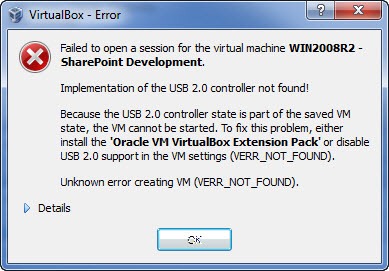
VirtualBox_Error

Especially interesting because the server was paused during a windows update (Not normally something that I do, but my host ran out of resources)

This is a verified bug, and can be easily fixed!

Locate your machine xml files (In windows they are stored in C:\Users\<your username>\.VirtualBox\Machines\<your machine>

STOP VirtualBox Manager

Open the file and locate the line:

 <USBController enabled="true" enabledEhci="false"/>


Set enabledEhci to false


Start VirtualBox Manager, and resume the virtual machine.


VirtualBox_Error_Fixed


See VirtualBox.org for more information (Ticket #8182)

Wednesday, March 9, 2011

Keep Dropdown items attributes during async. postback

If you add custom attributes to ListItems such as color etc. the attributes are lost when a partial postback occurs. The attributes are not kept in ViewState.

Dropdown

One solution is to re-apply the styles when a partial postback occurs:

if (Page.IsPostBack)
{
    

if (ScriptManager.GetCurrent(this
.Page).IsInAsyncPostBack)
     {
        
foreach (ListItem Item in
Drp_Tasks.Items)
         {
            
if (Item.Value.Contains("WSS Task"
))
                 Item.Attributes.Add(
"Style", "color:blue"
);
            
else if (Item.Value.Contains("Timesheet Task"
))
                 Item.Attributes.Add(
"Style", "color:green");
         }
     } }


Another solution is to create a new ListItem class that keeps the attributes in ViewState.

Thursday, March 3, 2011

CAML Query and User Groups – Membership

While creating a Timesheet webpart I needed to list a users tasks in a task list. The tip from Martin Hatch gave the basics. and the query executed fine in U2U CAML Query Builder (2007 version works fine for 2010)

<Where>
  <Or>
    <Eq>
      <FieldRef Name='AssignedTo' />
      <Value Type='UserMulti'>User Display Name</Value>
    </Eq>
    <Membership Type='CurrentUserGroups'>
      <FieldRef Name='AssignedTo' />
    </Membership>
  </Or>
</Where>


This query will return users in groups, and multiple users specified in the field:


Users and Groups


Note:


The Membership attribute checks current user, so do not run the query with elevated rights (SPSecurity.RunWithElevatedPrivileges(…)


Unless you assign tasks to your application pool the query will not return items based on group assignments

Wednesday, January 26, 2011

SPFieldUser is not persistent during postback

If you are using a custom listform and refering to a field of type SPFieldUser. The field tend to loose the content (users) during postback. Some times not easily detected because it will keep the viewstate sometimes.

This has been seen on versions 2007 and 2010.

The fix is relatively simple, by putting the contents into the viewstate in code.

Example:

In the listform.aspx

<SharePoint:FormField runat="server" id="Fld_Present" ControlMode="Edit" FieldName="Present" />

Snippets from codebehind

protected FormField Fld_Present; // Define the field in codebehind

// Define a private String for holding the value during postbacks


private String Present

{

    get

    {

        object obj = ViewState["Present"];

        return (obj == null) ? String.Empty : (String)obj;

    }

    set

    {

        ViewState["Present"] = value;

    }

}


protected override void CreateChildControls()

        {

            base.CreateChildControls();


            if (Fld_Attendees.Value.ToString() != "")

                this.Attendees = Fld_Attendees.Value.ToString();

            else

                Fld_Attendees.Value = new SPFieldUserValueCollection(SPContext.Current.Web, this.Attendees);


To keep values when the user field is edited, also add some code before postbacks that is defined in codebehind:


if (Fld_Attendees.Value.ToString() != "")

                    this.Attendees = Fld_Attendees.Value.ToString();


Thursday, January 20, 2011

Convert ListItem ID to UniqueID

This is just one way of getting from the ListItem ID (Not Index) to the GUID UniqueID

In SharePoint 2010 you can use SPList.GetItemByIdSelectedFields(…) or SPList.GetItemByIdAllFields(…)

Example:

GetItemByIdSelectedFields(Int32.Parse(this.ListItemID), new string[] { "UniqueId" });

If you don’t have 2010 you can always retrieve the ListItem with a CAML Query…

Tuesday, December 14, 2010

Change View headers in SharePoint 2010

For changing the view Headers you need the SharePoint 2010 Designer.

To start modifying your view select the “Edit List in SharePoint Designer” or simply open the designer and navigate to your list

SNAGHTML1ee2bedd

Click on the placeholder that has the View Web part to enable the ribbon tools.

SNAGHTML1ee7bfb8

Click List View Tools –> Design, and Choose Customize XSLT – Customize Entire View,  to enable editing of the xslt.

SNAGHTML1ee9f394

Click on a header, and replace the xslt in the codeview. The default xslt will be <xsl:value-of select="$fieldtitle"/> replace with something like <xsl:text disable-output-escaping="yes">Your new header</xsl:text>

Now for the important part:

You must remove all ddwrt:ghost="hide" attributes in your view. If these attributes exists the view will not be correctly saved. Do a search replace and save the “file”.

Before:

SNAGHTML1ee50b29

After:

SNAGHTML1ef12b85

Thursday, November 25, 2010

Edit initial text in TFS WorkItem User Story

The popular “As a <type of user> I want <some goal> so that <some reason>” is always the initial text in a user story work item.

When a WorkItem is opened in VS2010 the editor switches to a custom editor (<Witd:WITD application="Work item type editor")

The safe way is to use this editor

The value is not defined as the default value for the Description field. It is defined in the workflow for the workitem.

Start by choosing the Workflow tab

WIT_Workflow

Double click on the first transition (The one to the left)

Choose the fields tab and double click on the System.Description

WIT_Transition

Select the Rules tab, and double click on the DEFAULT entry

SNAGHTML35e1cc4

Edit your initial text

SNAGHTML3614dd3

You can also edit the XML file outside a the custom editor

It can easily be changed by taking a look in the XML (as XML not WIT in Visual Studio 2010) The text is located at line 177 in the XML file.