Showing posts with label XML. Show all posts

Thursday, May 26, 2011

Create a TFS Field that contains Assigned Date

The default TFS workitems does not have a field that records last “Assigned To” date. You can easily create a new field to record this date

Start by creating a new Field Definition

AssignedToDateField_Create

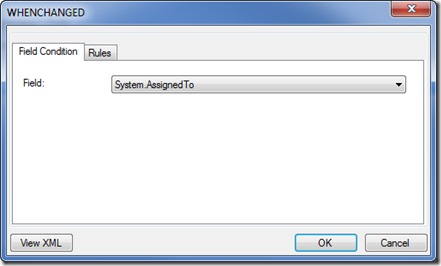
Create a new rule of type WHENCHANGED

SNAGHTML8f39e02

Select Field System.AssignedTo

WhenChanged

Create a new rule of type SERVERDEFAULT

SNAGHTML8f5a976

Select from “clock”

SNAGHTML8f63fbc

The field Assigned Date is now created and will be updated when the workitem is assigned or re-assigned.

If you prefer to modify the XML directly here is the snippet:

 <FIELD name="Assigned Date" refname="NTS.AssignedDate" type="DateTime" reportable="dimension">
        <WHENCHANGED field="System.AssignedTo">
          <SERVERDEFAULT from="clock" />
        </WHENCHANGED>
      </FIELD
>

Wednesday, February 18, 2009

Show document icon using XSL and DDWRT


When displaying a document icon using XSL you may have tried to just map the image from the /_layouts/images folder using the file extension. This will work in most cases but it will not map PDF files etc. unless you add the images or edit the file mappings.

The ddwrt library has just this function made for you:

include a reference to the library in your xslt:

xmlns:ddwrt="http://schemas.microsoft.com/WebParts/v2/DataView/runtime"

This is a snippet that includes the icon and sets the correct icon if the “file” is a folder:

<a href="{@FileRef}">
<xsl:choose>
<xsl:when test="@FSObjType=1"> <!-- Folder -->
<img alt="{@Title}" src="/_layouts/images/folder.gif" style="vertical-align: middle;border:none;"/>
</xsl:when>
<xsl:otherwise>
<img alt="{@Title}" src="/_layouts/images/{ddwrt:MapToIcon('', string(@File_x0020_Type))}" style="vertical-align: middle;border:none;"/>
</xsl:otherwise>
</xsl:choose>
</a>


Folders presented in xsl 

Wednesday, November 26, 2008

Normalize Space....

I'm working on a project that imports data from EPIServer to SharePoint. The solution simply reads a XML file and creates publishing pages, and uploads images based on the content.

The XML structure, and data are provided by a 3rd party vendor, so I don't have control over the content.

The import seemed to work and all the images were uploaded to SharePoint. But when the users began to insert images with formatting attributes in the img tag some spaces were added to the XML source. A quick look at the XML data in Internet Explorer did not reveal anything (Do not look at XML data in IE if you are debugging, Notepad or Notepad ++ is a much better choice).

I tried to make changes to the way XMLReader reads the document, but culd not manage to make the existing XPath query work.

To solve the problem without altering the export routine I had to make a XPath Query that included the entities with, and without the extra spaces.

Here is the XML with the space in the id attribute


The XPath query that were used in previous versions did not match the id when the space were present. A solution culd have been to just add a space in the query, but that did not seem to provide a good solution...


After searching for XML and Whitespace i found the Normalize-Space function. Problem solved!

This XPath query will return the results with or without a space