Friday, January 10, 2014

DNN Edit Page and Menu Not Working


After upgrading to DNN 7.2.0 the Edit Page button and the Admin Menu did not work. A quick check with Fiddler discovered that the JQuery scripts did not load

  • .../resources/libraries/jquery/1.9.1/jquery.js?cdv=236
  • .../resources/libraries/jquery-ui/1.10.3/jquery-ui.js?cdv=236
  • .../resources/libraries/jquery-migrate/1.2.1/jquery-migrate.js?cdv=236

Checked the existence of the files in the DNN Web directory on the IIS Server, all files were present.

The next check was the IIS log files, and here the solution was discovered:

GET /Rejected-By-UrlScan ~/resources/libraries/jquery-ui/1.10.3/jquery-ui.js?cdv=236

The IIS UrlScan rejected all paths that included a ‘dot’ in the pathname.

Note: The UrlScan.ini should be updated with caution, in this case the solution was to set AllowDotInPath=1  and to make sure that the double dots, dot slash and dot backslash also was rejected. By enabling dots in path names the PATH_INFO variable can be interpreted wrong. The rule of thumb is that if AllowDotInPath=1 is set, then rules based on the file extension may do unexpected things, including allowing requests that you intend to block .

Consider the url libraries/jquery/1.9.1/jquery.js

This can be converted into file = 1.9.1 parameter is /jquery.js

Or Download/Files.new/test.doc

Can be translated to

Get files.new with parameter test.doc

For versioning paths I always use hyphen or underscore

Wednesday, April 24, 2013

TFS 2012 Web Access Can’t load your extension


In Team Foundation Server 2012 you can develop extensions to the web interface, there extensions are javascripts (JQuery) that can be easily installed from the TFS Web Access Control Panel.
For information about the scripts and how to make a package and manifest se Serkan's Blog
After creating a package and trying to run my scripts I go a error message:

Module ‘mymodule’ cannot be loaded. This may be due to lost connectivity or an incomplete or corrupted download of the file. Try refreshing your browser or clearing your browser cache to retrieve the file again.

By turning on Web Access Script Debug Mode I found that a script called mymodule.debug.js is mandatory by using Fiddler (Be sure to include a .debug script if you plan to ship your extension or your extension will fail if debug is turned on)

OK so the .debug file was missing, adding that file (An empty one in my case solved the problem) – So the message was telling the truth… the file is not found

So I turned off Web Access Script Debug Mode and looked at Fiddler again, OK here is the solution: My script file was not minified and not called .min.js hence the file was not found.

By renaming the .js file to .min.js the file was loaded and all works as expected.

TFS Web Access expects the extension script to be named your.module.min.js regardless of what files that are in your zipped package.

Thursday, May 31, 2012

Make dOOdads understand SQL Datatype Date


For you that are using the  dOOdads .NET architecture and are generating source based on tables that use the datatypes Date or Time and are getting Unknown in your code. Here is a simple solution to make MyGeneration create code that supports SQL data types Date and Time:

Locate your DbTargets.xml and add

<Type From="date" To="SqlDbType.Date" />
<Type From="time" To="SqlDbType.Time" />
 
Locate your Languages.xml and add

<Type From="date" To="DateTime" />
<Type From="time" To="TimeSpan" />
 
The dOOdads allready known the datatype TimeSpan so the rest is handlesd by the framework.
To add a Date in code use DateTime.TimeOfDay to get the TimeSpan

Wednesday, February 15, 2012

Error when adding a Record Center site

When adding a Record Center to a SharePoint Server installation you may see the error “Dependency feature ‘DocumentRoutingResources’ … is not Activated

DocumentRoutingResources_Error

The feature is a hidden feature and can not be enabled in the GUI’s

To enable this feature start the “SharePoint 2010 Management Shell” (Power Shell) located in the start menu in “Microsoft SharePoint 2010” folder.

Copy/type the following command to enable:

Enable-SPFeature -Identity "DocumentRoutingResources" -Url http://yoursiteurl


RecordsCenter

Thursday, May 26, 2011

Create a TFS Field that contains Assigned Date

The default TFS workitems does not have a field that records last “Assigned To” date. You can easily create a new field to record this date

Start by creating a new Field Definition

AssignedToDateField_Create

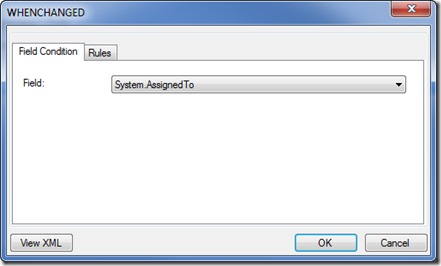
Create a new rule of type WHENCHANGED

SNAGHTML8f39e02

Select Field System.AssignedTo

WhenChanged

Create a new rule of type SERVERDEFAULT

SNAGHTML8f5a976

Select from “clock”

SNAGHTML8f63fbc

The field Assigned Date is now created and will be updated when the workitem is assigned or re-assigned.

If you prefer to modify the XML directly here is the snippet:

 <FIELD name="Assigned Date" refname="NTS.AssignedDate" type="DateTime" reportable="dimension">
        <WHENCHANGED field="System.AssignedTo">
          <SERVERDEFAULT from="clock" />
        </WHENCHANGED>
      </FIELD
>

Tuesday, May 10, 2011

Workflow - Use url when creating a link in workflow steps

This may be obvious, but if you choose text instead of url in a link that you create in SharePoint Designer you can get an invalid link since the text version also includes the title

Ex: “http://mysite.mydom.com, Link Title”

In my case a link already existed in a SharePoint ListItem as a valid URL. But when added as a link in a mail the url got the trailing comma and title. Which in turn gave the webserver an invalid parameter.

The link that should have been:

…/wi.aspx?pcguid=d6d9eacb-0d67-4b19-ad62-626ab5cc1cf0&id=916

became

…/wi.aspx?pcguid=d6d9eacb-0d67-4b19-ad62-626ab5cc1cf0&id=916,%20Click%20to%20open%20the%20WorkItem%20in%20TFS

and the TFS Web did not like ID’s with comma and text…

Url

Friday, May 6, 2011

Remember to modify default.aspx after enabling “Wiki Page Home Page”

When enabling this feature you are modifying the default homepage of your site. The homepage will go from …/Default.aspx to …/SitePages/Home.aspx

When users have added bookmarks using the default.aspx homepage the users will still use your old homepage.

Quickfix edit the default.aspx file using SharePoint Designer and make a redirect to the new page. Or just add a Content editor and insert a script or descriptive text to update bookmarks

Monday, April 18, 2011

Unable to restore Oracle VirtualBox virtual machine

Note: The same issue also occurs when VirtualBox is upgraded to version 4.0.6 r71416. when you try to start any virtual machine

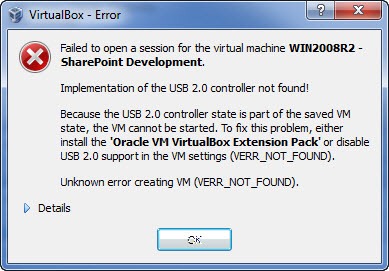
Failed to open a session for the virtual machine <your machine> Implementation of the USB 2.0 controller not found!
Because the USB 2.0 controller state is part of the saved VM state, the VM cannot be started. To fix this problem, either install the 'Oracle VM VirtualBox Extension Pack' or disable USB 2.0 support in the VM settings (VERR_NOT_FOUND).
Unknown error creating VM (VERR_NOT_FOUND).

Today this message appeared when resuming the development machine.. Oracle VirtualBox v4.04

VirtualBox_Error

Especially interesting because the server was paused during a windows update (Not normally something that I do, but my host ran out of resources)

This is a verified bug, and can be easily fixed!

Locate your machine xml files (In windows they are stored in C:\Users\<your username>\.VirtualBox\Machines\<your machine>

STOP VirtualBox Manager

Open the file and locate the line:

 <USBController enabled="true" enabledEhci="false"/>


Set enabledEhci to false


Start VirtualBox Manager, and resume the virtual machine.


VirtualBox_Error_Fixed


See VirtualBox.org for more information (Ticket #8182)

Wednesday, March 9, 2011

Keep Dropdown items attributes during async. postback

If you add custom attributes to ListItems such as color etc. the attributes are lost when a partial postback occurs. The attributes are not kept in ViewState.

Dropdown

One solution is to re-apply the styles when a partial postback occurs:

if (Page.IsPostBack)
{
    

if (ScriptManager.GetCurrent(this
.Page).IsInAsyncPostBack)
     {
        
foreach (ListItem Item in
Drp_Tasks.Items)
         {
            
if (Item.Value.Contains("WSS Task"
))
                 Item.Attributes.Add(
"Style", "color:blue"
);
            
else if (Item.Value.Contains("Timesheet Task"
))
                 Item.Attributes.Add(
"Style", "color:green");
         }
     } }


Another solution is to create a new ListItem class that keeps the attributes in ViewState.

Thursday, March 3, 2011

CAML Query and User Groups – Membership

While creating a Timesheet webpart I needed to list a users tasks in a task list. The tip from Martin Hatch gave the basics. and the query executed fine in U2U CAML Query Builder (2007 version works fine for 2010)

<Where>
  <Or>
    <Eq>
      <FieldRef Name='AssignedTo' />
      <Value Type='UserMulti'>User Display Name</Value>
    </Eq>
    <Membership Type='CurrentUserGroups'>
      <FieldRef Name='AssignedTo' />
    </Membership>
  </Or>
</Where>


This query will return users in groups, and multiple users specified in the field:


Users and Groups


Note:


The Membership attribute checks current user, so do not run the query with elevated rights (SPSecurity.RunWithElevatedPrivileges(…)


Unless you assign tasks to your application pool the query will not return items based on group assignments

Wednesday, January 26, 2011

SPFieldUser is not persistent during postback

If you are using a custom listform and refering to a field of type SPFieldUser. The field tend to loose the content (users) during postback. Some times not easily detected because it will keep the viewstate sometimes.

This has been seen on versions 2007 and 2010.

The fix is relatively simple, by putting the contents into the viewstate in code.

Example:

In the listform.aspx

<SharePoint:FormField runat="server" id="Fld_Present" ControlMode="Edit" FieldName="Present" />

Snippets from codebehind

protected FormField Fld_Present; // Define the field in codebehind

// Define a private String for holding the value during postbacks


private String Present

{

    get

    {

        object obj = ViewState["Present"];

        return (obj == null) ? String.Empty : (String)obj;

    }

    set

    {

        ViewState["Present"] = value;

    }

}


protected override void CreateChildControls()

        {

            base.CreateChildControls();


            if (Fld_Attendees.Value.ToString() != "")

                this.Attendees = Fld_Attendees.Value.ToString();

            else

                Fld_Attendees.Value = new SPFieldUserValueCollection(SPContext.Current.Web, this.Attendees);


To keep values when the user field is edited, also add some code before postbacks that is defined in codebehind:


if (Fld_Attendees.Value.ToString() != "")

                    this.Attendees = Fld_Attendees.Value.ToString();


Thursday, January 20, 2011

Convert ListItem ID to UniqueID

This is just one way of getting from the ListItem ID (Not Index) to the GUID UniqueID

In SharePoint 2010 you can use SPList.GetItemByIdSelectedFields(…) or SPList.GetItemByIdAllFields(…)

Example:

GetItemByIdSelectedFields(Int32.Parse(this.ListItemID), new string[] { "UniqueId" });

If you don’t have 2010 you can always retrieve the ListItem with a CAML Query…

Tuesday, December 14, 2010

Change View headers in SharePoint 2010

For changing the view Headers you need the SharePoint 2010 Designer.

To start modifying your view select the “Edit List in SharePoint Designer” or simply open the designer and navigate to your list

SNAGHTML1ee2bedd

Click on the placeholder that has the View Web part to enable the ribbon tools.

SNAGHTML1ee7bfb8

Click List View Tools –> Design, and Choose Customize XSLT – Customize Entire View,  to enable editing of the xslt.

SNAGHTML1ee9f394

Click on a header, and replace the xslt in the codeview. The default xslt will be <xsl:value-of select="$fieldtitle"/> replace with something like <xsl:text disable-output-escaping="yes">Your new header</xsl:text>

Now for the important part:

You must remove all ddwrt:ghost="hide" attributes in your view. If these attributes exists the view will not be correctly saved. Do a search replace and save the “file”.

Before:

SNAGHTML1ee50b29

After:

SNAGHTML1ef12b85

Thursday, November 25, 2010

Edit initial text in TFS WorkItem User Story

The popular “As a <type of user> I want <some goal> so that <some reason>” is always the initial text in a user story work item.

When a WorkItem is opened in VS2010 the editor switches to a custom editor (<Witd:WITD application="Work item type editor")

The safe way is to use this editor

The value is not defined as the default value for the Description field. It is defined in the workflow for the workitem.

Start by choosing the Workflow tab

WIT_Workflow

Double click on the first transition (The one to the left)

Choose the fields tab and double click on the System.Description

WIT_Transition

Select the Rules tab, and double click on the DEFAULT entry

SNAGHTML35e1cc4

Edit your initial text

SNAGHTML3614dd3

You can also edit the XML file outside a the custom editor

It can easily be changed by taking a look in the XML (as XML not WIT in Visual Studio 2010) The text is located at line 177 in the XML file.

Friday, November 12, 2010

Custom List Form with version history

When turning on version history on a list that is using custom list forms the text entered in a multiple line textbox is not displayed. when the field is in Display mode. The text just seems to be lost in the database. But by examining the version history for the item you will see all the changes.

The solution is simple:

In order to display the history use another control type, use the <SharePoint:AppendOnlyHistory/> instead of <SharePoint:FormField/>

By using this control you will get a nice list of all the field versions.

And by combining the two you can get a field that displays the history, and at the same time give the possibilities to edit the text:

TFS_Bug_with_history_full

Tuesday, November 9, 2010

Cannot reference …WorkItemTracking.Controls

When developing custom WorkItem Control Types you must reference Microsoft.TeamFoundation.WorkItemTracking.Controls But the filtered list of assemblies does not display the assembly despite the fact that it is in the GAC (C:\Windows\Assembly)

There are multiple ways of retrieving the correct reference, one is to use the Muse.VSExtensions.

This extensions lists all assemblies in the GAC and allows you to add an assembly as a reference

Add_GAC_Reference

Tuesday, November 2, 2010

IsDlg=1 numeric value is not validated

When using SP.UI.ModalDialog.showModalDialog(…) you should set the parameter IsDlg to 1 when calling a List Form (View/Edit/Create) this removes all references to masterpage items such as quick launch etc.

Keep in mind that the numeric value entered after the IsDlg has no effect, so setting IsDlg=0 is the same as IsDlg=1 SharePoint only checks for the existence of the variable IsDlg and does not check if the value is set to anything. So leave out the IsDlg entirely when the page is loaded without popup windows

Thursday, September 30, 2010

disable-output-escaping="yes" on People or Group Column

When creating a custom List Form from SharePoint Designer 2010 the People or Group field/columns ends up being displayed as HTML code instead of the field value

PID

To get fieldtypes that renders as HTML to display correctly just add the parameter disable-output-escaping="yes" to the value-of select:

EscapeYes

This will display the People or Group field with the correct link to the person.

Friday, July 30, 2010

Error when connecting VS2008 to TFS2010

When connecting Visual Studio 2008 to TFS2010 you must have the following update installed “Visual Studio Team System 2008 Forward Compatibility Update for Team Foundation Server 2010 interoperability

If you are using “Local Database Cache functionality in Smart
Device projects” the “Microsoft Synchronization Services for ADO.NET 1.0 for Devices” must also be installed.

The Visual Studio 2008 SP1 is a required prerequisite to install the above updates.

After installing you must use the complete Url to the TFS2010 Server, and leave out the trailing slash. if the URL contans a trailing slash a message “Unable to switch servers at this time. Team Explorer is busy.” will appear several times. And end in a dialog box  with the message “Error in the application”

Add 2010 Server with 2008 Client

For more information about the limitations of a 2008 client with a 2010 server see “Compatible Matrix for 2010 RTM Team Foundation Server to Team Explorer 2008 and 2005

Wednesday, July 28, 2010

Connecting to TFS2010 from a Webpart

With the implementation of Team Foundation Server 2010 the need for some integration with SharePoint 2010 was needed. Just to test the TFS API a simple webpart for registration of User Stories from SharePoint was created.

New to the TFS API I discovered that connection to the Project Collection needed a ICredentialsProvider (Fallback).  The UICredentialsProvider works fine in Windows Applications but when using the web, this provider can not be used…

The first step is to create a new Interface that uses the NetworkCredential class to return the credentials

public class NetworkCredentialsProvider : ICredentialsProvider
    {
        private readonly NetworkCredential credentials;
        public NetworkCredentialsProvider(NetworkCredential credentials)
        {
            this.credentials = credentials;
        }
        public ICredentials GetCredentials(Uri uri, ICredentials failedCredentials)
        {
            return this.credentials;
        }
        public void NotifyCredentialsAuthenticated(Uri uri)
        {
        }
    }

Use this Provider to connect to the Project Collection

ICredentialsProvider TFSProxyCredentials;
var credentials = new NetworkCredential("Username", "Password", "Domain"); TFSProxyCredentials = new NetworkCredentialsProvider(credentials);

var projectCollection = TfsTeamProjectCollectionFactory.GetTeamProjectCollection(projectCollectionUri, TFSProxyCredentials);

When running this code from a webpage/webpart the TFS will return an exception: “TF237121: Cannot complete the operation. An unexpected error occurred.”

This Exception is occurs because the TFS Client does not have a reference to a local Cache for storing files. (Normally this is stored in the current user profile area)

The solution is to let the TFS Client know where to store cache-files. This is done by defining a application setting named WorkItemTrackingCacheRoot and specifying a local path on the server (With proper NTFS rights)

The application setting can be created in web.config or programmatically

web.config:

<appSettings> <!-- Add reference to TFS Client Cache -->
   <
add key="WorkItemTrackingCacheRoot" value="C:\TFSClientCache"
/> </appSettings>

Code:

if (WebConfigurationManager.AppSettings["WorkItemTrackingCacheRoot"] == null || WebConfigurationManager.AppSettings["WorkItemTrackingCacheRoot"] == String.Empty)
{
   WebConfigurationManager.AppSettings["WorkItemTrackingCacheRoot"] = System.IO.Path.GetTempPath() + "TFSClientCache";
}

Thanks to Naren’s blog for pointing out the Client Cache settings

Click to download complete code to connect, and to get project info