Showing posts with label TFS 2010. Show all posts

Thursday, May 26, 2011

Create a TFS Field that contains Assigned Date

The default TFS workitems does not have a field that records last “Assigned To” date. You can easily create a new field to record this date

Start by creating a new Field Definition

AssignedToDateField_Create

Create a new rule of type WHENCHANGED

SNAGHTML8f39e02

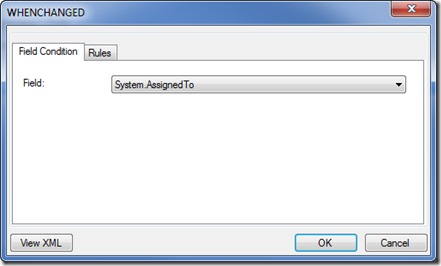
Select Field System.AssignedTo

WhenChanged

Create a new rule of type SERVERDEFAULT

SNAGHTML8f5a976

Select from “clock”

SNAGHTML8f63fbc

The field Assigned Date is now created and will be updated when the workitem is assigned or re-assigned.

If you prefer to modify the XML directly here is the snippet:

 <FIELD name="Assigned Date" refname="NTS.AssignedDate" type="DateTime" reportable="dimension">
        <WHENCHANGED field="System.AssignedTo">
          <SERVERDEFAULT from="clock" />
        </WHENCHANGED>
      </FIELD
>

Thursday, November 25, 2010

Edit initial text in TFS WorkItem User Story

The popular “As a <type of user> I want <some goal> so that <some reason>” is always the initial text in a user story work item.

When a WorkItem is opened in VS2010 the editor switches to a custom editor (<Witd:WITD application="Work item type editor")

The safe way is to use this editor

The value is not defined as the default value for the Description field. It is defined in the workflow for the workitem.

Start by choosing the Workflow tab

WIT_Workflow

Double click on the first transition (The one to the left)

Choose the fields tab and double click on the System.Description

WIT_Transition

Select the Rules tab, and double click on the DEFAULT entry

SNAGHTML35e1cc4

Edit your initial text

SNAGHTML3614dd3

You can also edit the XML file outside a the custom editor

It can easily be changed by taking a look in the XML (as XML not WIT in Visual Studio 2010) The text is located at line 177 in the XML file.

Tuesday, November 9, 2010

Cannot reference …WorkItemTracking.Controls

When developing custom WorkItem Control Types you must reference Microsoft.TeamFoundation.WorkItemTracking.Controls But the filtered list of assemblies does not display the assembly despite the fact that it is in the GAC (C:\Windows\Assembly)

There are multiple ways of retrieving the correct reference, one is to use the Muse.VSExtensions.

This extensions lists all assemblies in the GAC and allows you to add an assembly as a reference

Add_GAC_Reference

Friday, July 30, 2010

Error when connecting VS2008 to TFS2010

When connecting Visual Studio 2008 to TFS2010 you must have the following update installed “Visual Studio Team System 2008 Forward Compatibility Update for Team Foundation Server 2010 interoperability

If you are using “Local Database Cache functionality in Smart
Device projects” the “Microsoft Synchronization Services for ADO.NET 1.0 for Devices” must also be installed.

The Visual Studio 2008 SP1 is a required prerequisite to install the above updates.

After installing you must use the complete Url to the TFS2010 Server, and leave out the trailing slash. if the URL contans a trailing slash a message “Unable to switch servers at this time. Team Explorer is busy.” will appear several times. And end in a dialog box  with the message “Error in the application”

Add 2010 Server with 2008 Client

For more information about the limitations of a 2008 client with a 2010 server see “Compatible Matrix for 2010 RTM Team Foundation Server to Team Explorer 2008 and 2005

Wednesday, July 28, 2010

Connecting to TFS2010 from a Webpart

With the implementation of Team Foundation Server 2010 the need for some integration with SharePoint 2010 was needed. Just to test the TFS API a simple webpart for registration of User Stories from SharePoint was created.

New to the TFS API I discovered that connection to the Project Collection needed a ICredentialsProvider (Fallback).  The UICredentialsProvider works fine in Windows Applications but when using the web, this provider can not be used…

The first step is to create a new Interface that uses the NetworkCredential class to return the credentials

public class NetworkCredentialsProvider : ICredentialsProvider
    {
        private readonly NetworkCredential credentials;
        public NetworkCredentialsProvider(NetworkCredential credentials)
        {
            this.credentials = credentials;
        }
        public ICredentials GetCredentials(Uri uri, ICredentials failedCredentials)
        {
            return this.credentials;
        }
        public void NotifyCredentialsAuthenticated(Uri uri)
        {
        }
    }

Use this Provider to connect to the Project Collection

ICredentialsProvider TFSProxyCredentials;
var credentials = new NetworkCredential("Username", "Password", "Domain"); TFSProxyCredentials = new NetworkCredentialsProvider(credentials);

var projectCollection = TfsTeamProjectCollectionFactory.GetTeamProjectCollection(projectCollectionUri, TFSProxyCredentials);

When running this code from a webpage/webpart the TFS will return an exception: “TF237121: Cannot complete the operation. An unexpected error occurred.”

This Exception is occurs because the TFS Client does not have a reference to a local Cache for storing files. (Normally this is stored in the current user profile area)

The solution is to let the TFS Client know where to store cache-files. This is done by defining a application setting named WorkItemTrackingCacheRoot and specifying a local path on the server (With proper NTFS rights)

The application setting can be created in web.config or programmatically

web.config:

<appSettings> <!-- Add reference to TFS Client Cache -->
   <
add key="WorkItemTrackingCacheRoot" value="C:\TFSClientCache"
/> </appSettings>

Code:

if (WebConfigurationManager.AppSettings["WorkItemTrackingCacheRoot"] == null || WebConfigurationManager.AppSettings["WorkItemTrackingCacheRoot"] == String.Empty)
{
   WebConfigurationManager.AppSettings["WorkItemTrackingCacheRoot"] = System.IO.Path.GetTempPath() + "TFSClientCache";
}

Thanks to Naren’s blog for pointing out the Client Cache settings

Click to download complete code to connect, and to get project info